Team
Inviting members by link or email, roles and access management.
The workspace members, their roles and invites live under Settings → Agents.
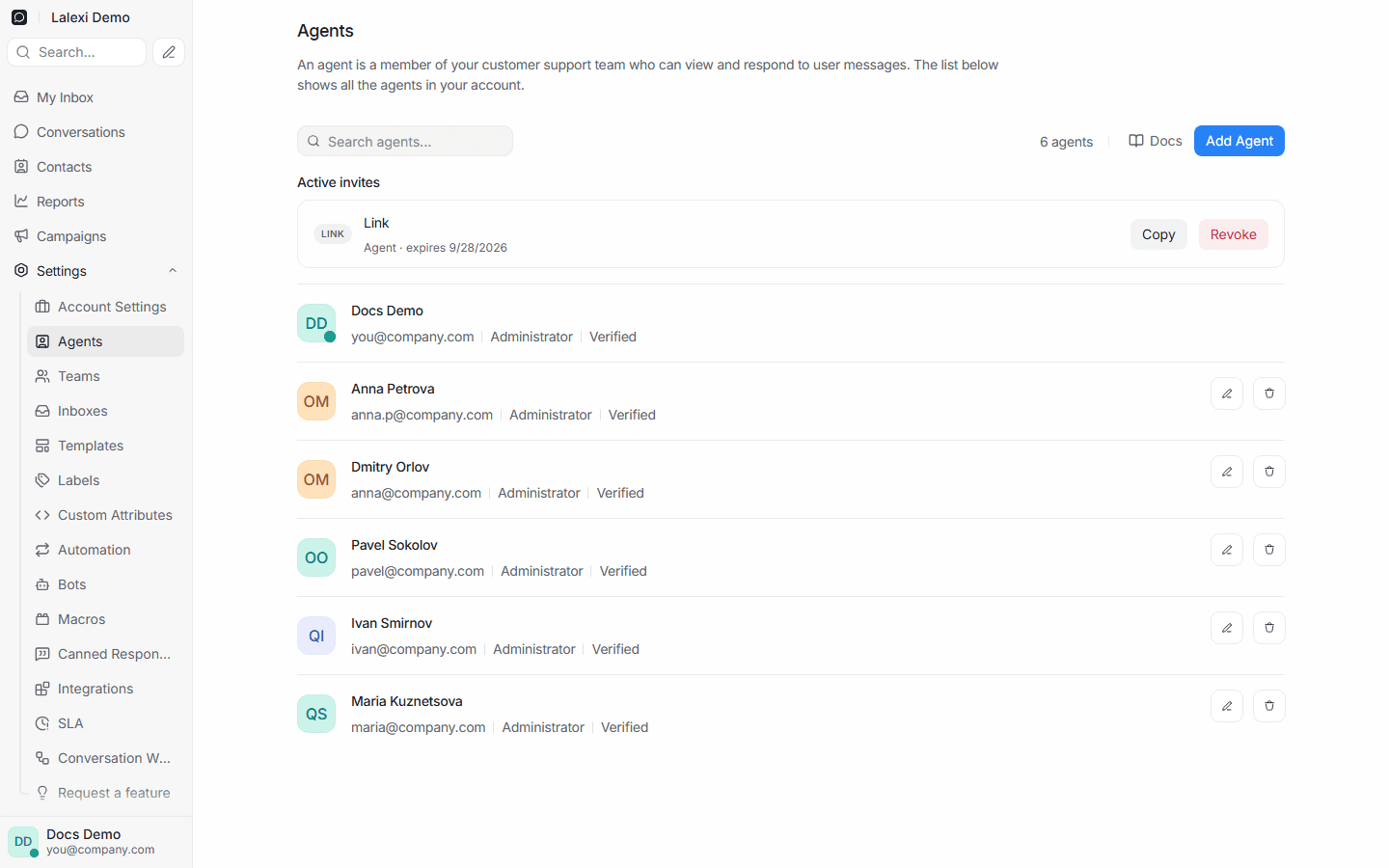
How to invite a member
Press Add Agent — the invite window opens. Pick a role and one of the two ways:
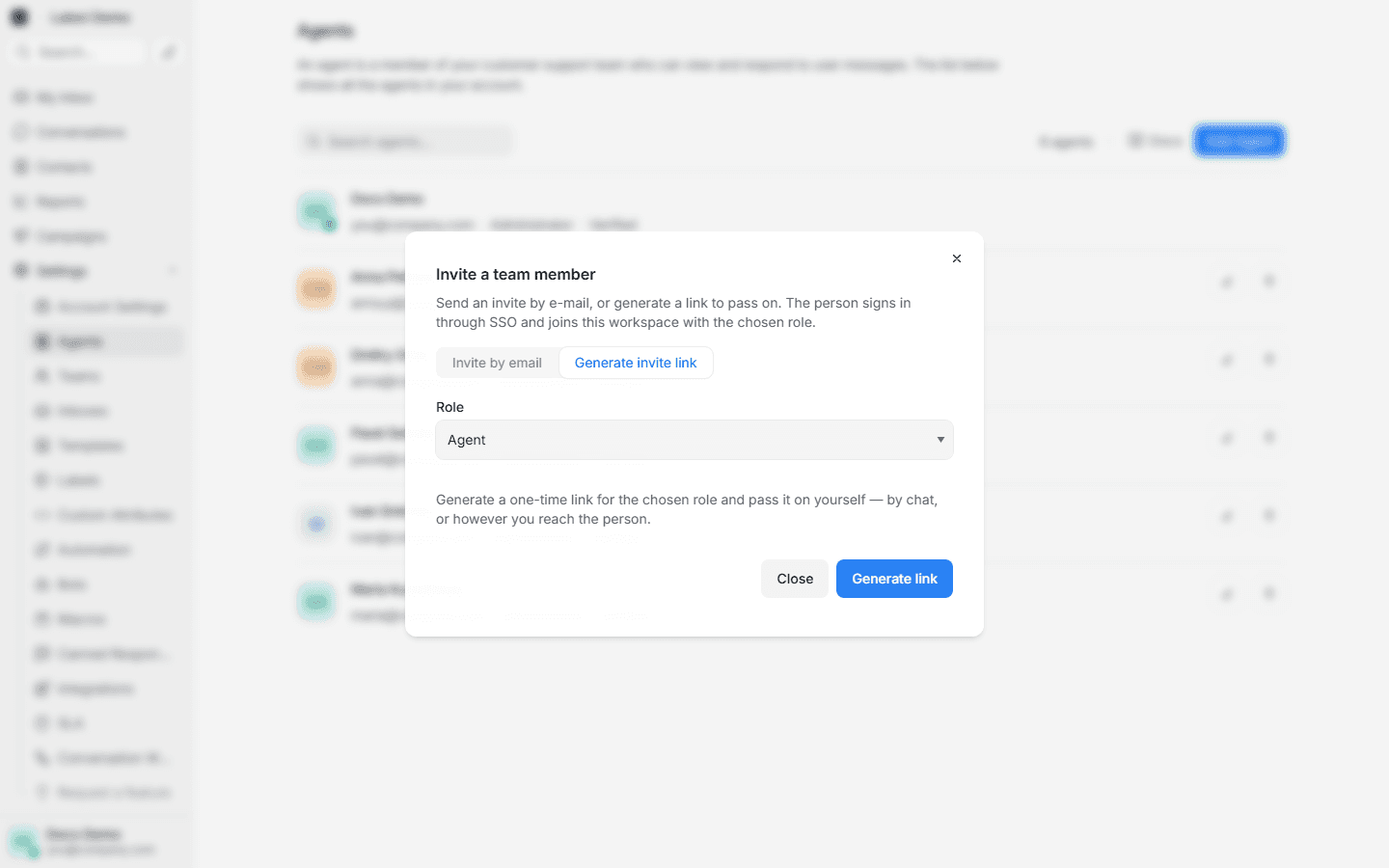
- By email — enter an address and press Send invite; they get an email with a sign-in link.
- By link — press Generate link, copy it and pass it on any way you like. The link is valid for 7 days.
The person follows the link, signs in through single sign-on and lands in your workspace with the chosen role.
Sent invites appear above the member list under Active invites (with a "Link" or "Email" type, the role and an expiry date). Any of them can be copied again or revoked.
Only an accepted invite takes a seat in the seat limit. A link can always be issued; if no seats are left, the refusal is shown to the person signing in.
Roles
- Agent — works with chats of the inboxes they have access to. Can link their own number themselves (see Connections).
- Administrator — sees everything, manages the team and settings.
A member's role is changed with the pencil in the list.
Chat access
Which conversations a member sees depends on the inboxes they have access to. Learn more in Sync settings.
Seeing conversations and being given them are two different things: chats are handed out only to the agents of an inbox, and only to those who are online right now. See Conversation assignment.
Bitrix24
Your Lalexi conversations inside the Bitrix24 chat: a client's message arrives in an open line, the reply written there reaches the client, and every message lands in the CRM card's history.
API
Lalexi conversations, messages, contacts, channels, connecting numbers and broadcasts from your CRM, website or back office: the address, the personal token, workspaces, errors, pages, limits and safe retries.