Conversation assignment
Round-robin auto assignment between agents, manual assignment, availability status and teams.
Any conversation in Lalexi can be assigned to an agent: it then shows up in their Mine tab, and they are the one on the hook for the reply. Assignment is either automatic — round robin between the agents of an inbox — or manual.
Who takes part in the distribution
A conversation only goes to someone listed as an agent of the inbox. That list lives in Settings → Inboxes → the inbox → Collaborators, field Agents.
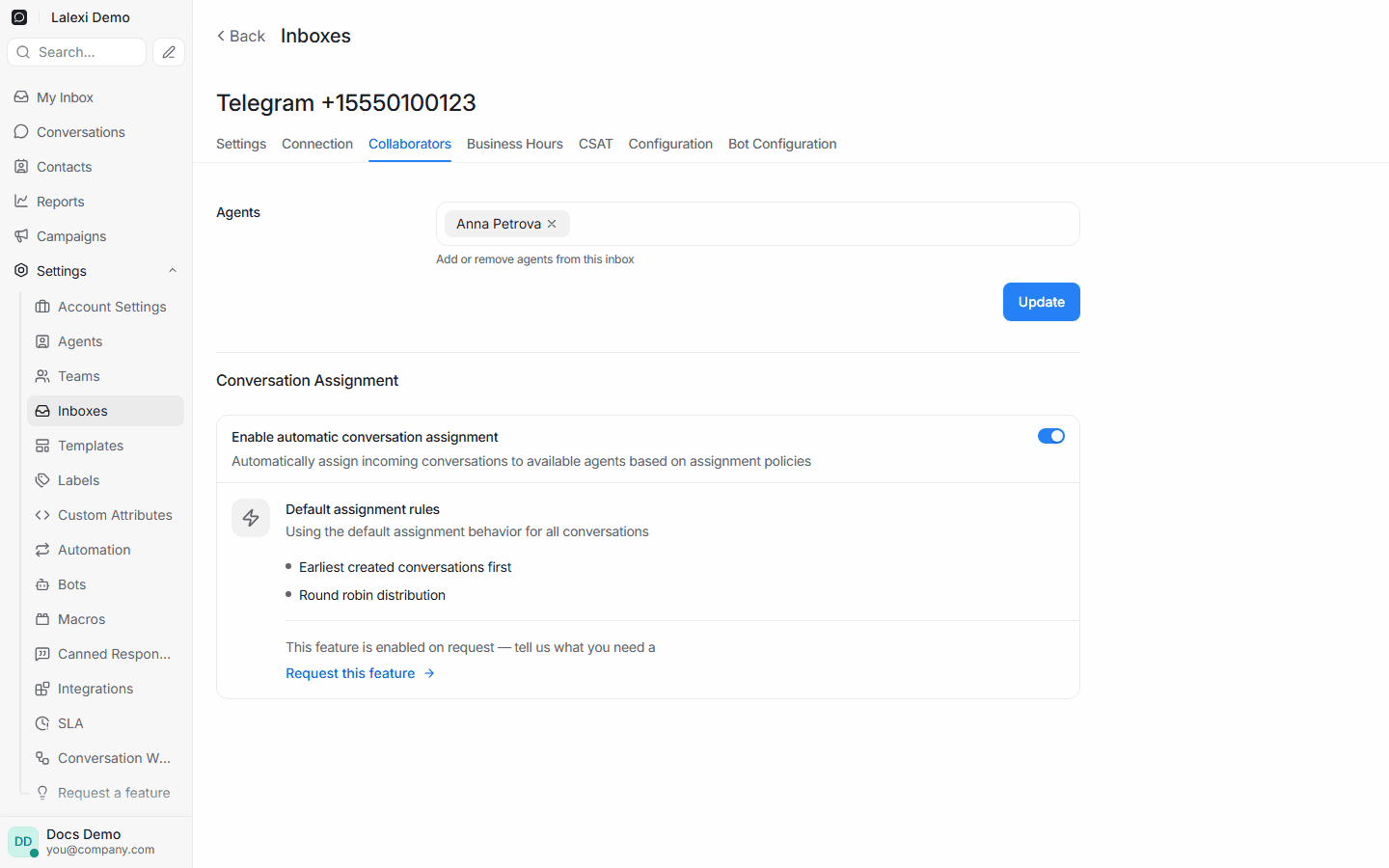
Changes are applied with Update.
When a member links a personal number or a bot, they become the inbox's only agent. Until an administrator adds the others to Agents, every chat from that channel goes to one person.
An administrator sees the conversations of every inbox, but is automatically given chats only from the inboxes where they are in the Agents list.
Round-robin auto assignment
Further down the same tab there is the Conversation Assignment block with the Enable automatic conversation assignment switch. It is on by default for every inbox.
The rules behind the distribution are shown right there as Default assignment rules:
| Rule | What it means |
|---|---|
| Earliest created conversations first | Older conversations are handed out first. |
| Round robin distribution | Each new chat goes to the next agent in turn, so the load is split evenly. |
Step by step:
- A customer writes — a new conversation appears in the inbox.
- The system takes the agents of that inbox whose status is Online.
- It picks the next one in the queue and assigns the conversation to them.
- A system record appears in the conversation: Assigned to … by Default Policy.
Only agents with the Online status take part. If nobody is online when the message arrives, the conversation stays unassigned — in the Unassigned tab.
Availability status
Agents switch their own status in the menu under their name in the bottom-left corner.
| Status | Takes part in auto assignment |
|---|---|
| Online | yes |
| Busy | no — new chats do not arrive automatically |
| Offline | no |
The Mark offline automatically switch puts a person offline once they stop working in the app, which also takes them out of the rotation.
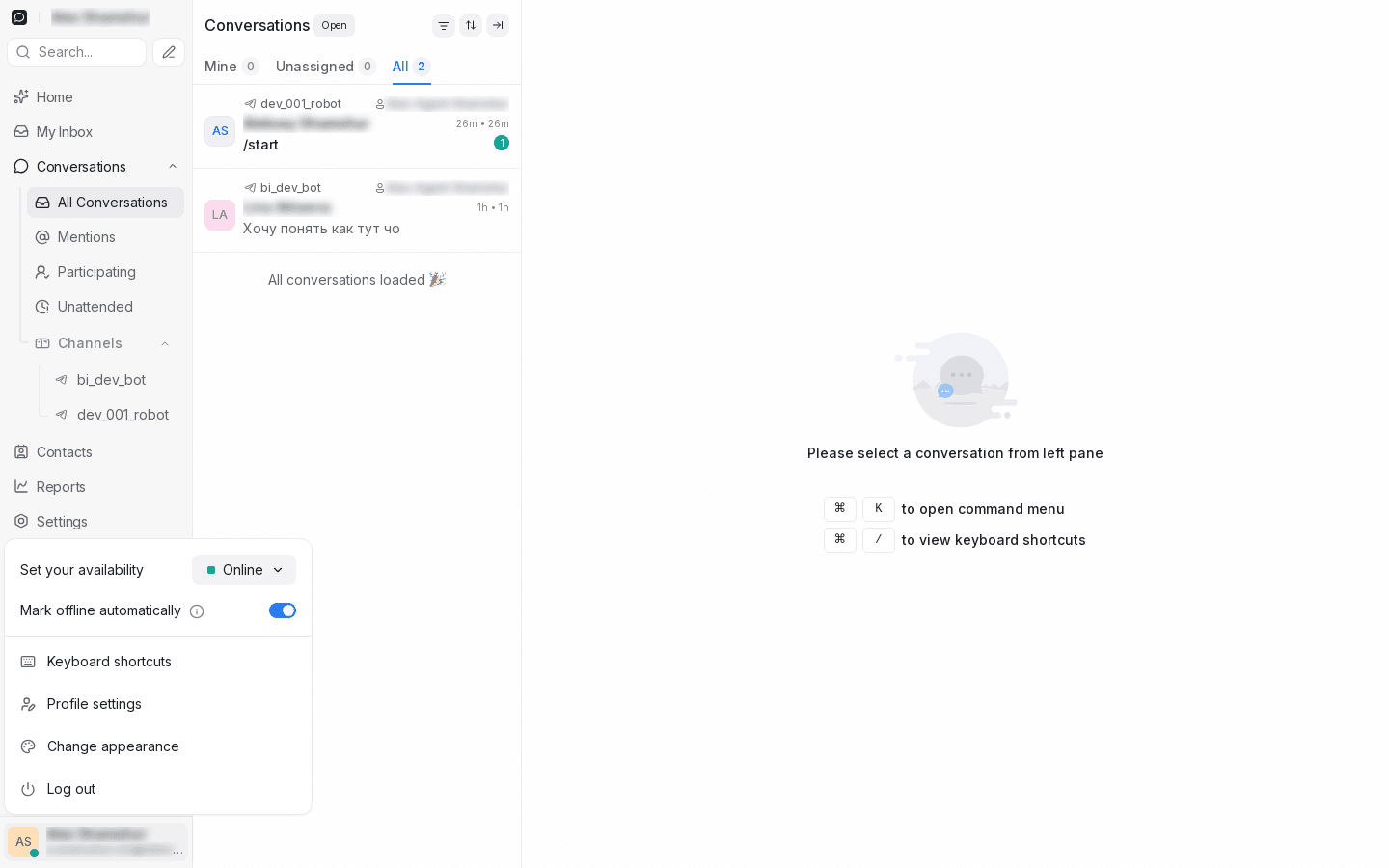
In the conversation list the assignee is shown above the customer's name, and the three tabs split the list: Mine, Unassigned and All.
Manual assignment
Open a conversation and expand the Conversation Actions block on the right:
- Assigned Agent — pick an agent from the inbox agents;
- Assign to me — take the conversation with one click;
- Assigned Team — assign it to a team.
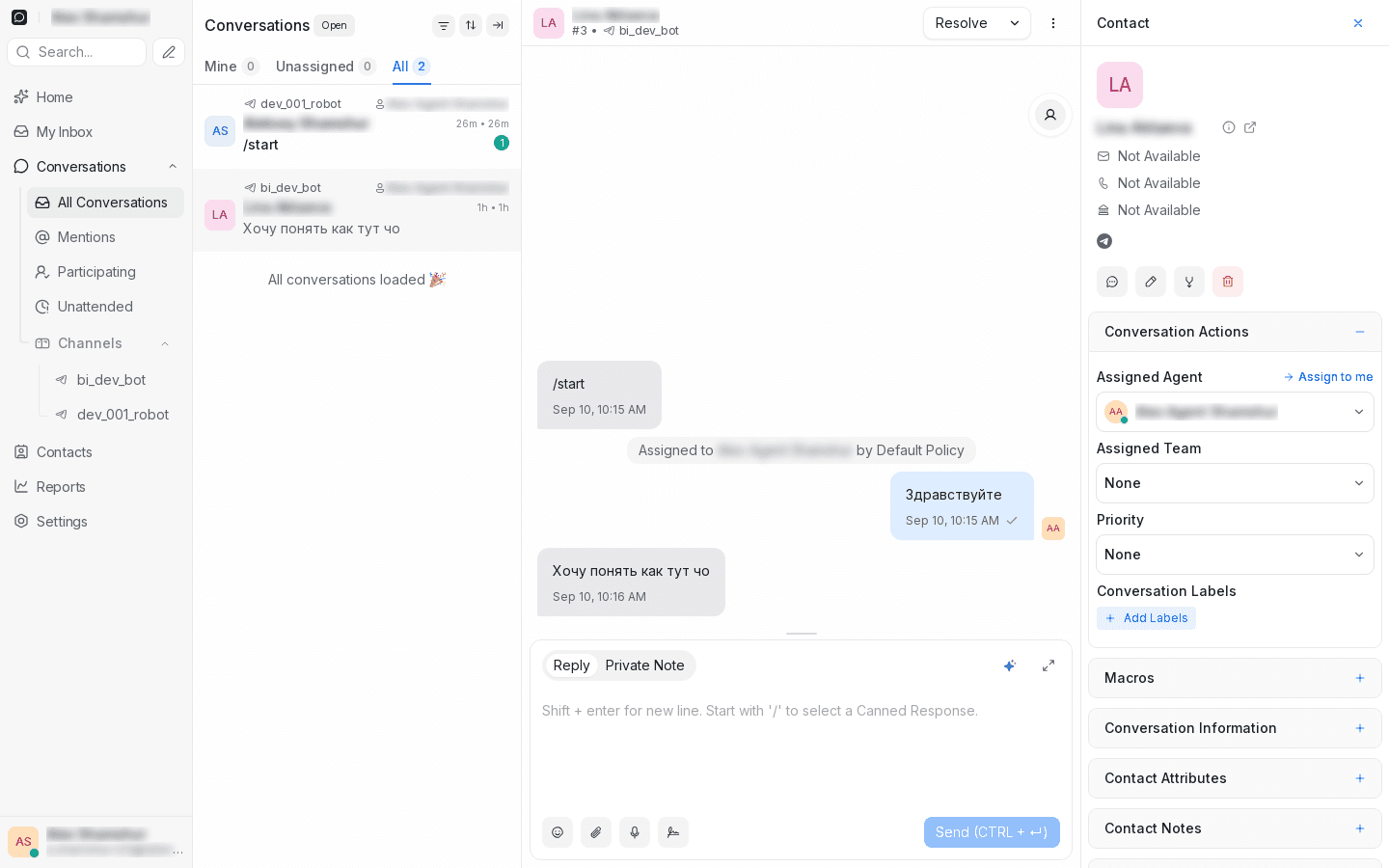
Manual assignment wins over the automatic one: auto assignment never touches a conversation that already has an agent.
The system record in the timeline always tells you who did the assigning:
| Record | What happened |
|---|---|
| Assigned to … by Default Policy | The inbox auto assignment did it |
| Assigned to … by … | A person assigned the agent |
| … self-assigned this conversation | The agent took the conversation |
| Assigned to … by Automation System | An automation rule fired |
| Conversation unassigned by … | The assignment was removed |
Teams
Settings → Teams is an optional layer on top of the distribution. A team is a group of agents (say "first line" or "finance"); a conversation can be assigned to the team as a whole.
If the team has Allow auto assign for this team enabled, the chat is handed round robin inside it — among the people who are in the team, are agents of the inbox and are Online right now. If it is disabled, a conversation with that team is not assigned automatically at all and has to be picked up by hand.
Automation rules
Settings → Automation distributes chats by conditions: the Assign to Agent and Assign a Team actions hand a conversation to a specific agent or team when it matches — channel, label, message content. Useful when part of the traffic should bypass the common queue: every chat labelled "billing" goes to the finance person, for example.
Worth remembering
- Nobody online means nobody gets the chat. The conversation is not queued until morning, it simply stays in the Unassigned tab.
- There is a pace limit. By default an agent receives at most five new conversations per five minutes in one inbox, so a burst does not land on a single person.
- A stuck conversation is not assigned by a new message inside it. Auto assignment wakes up on inbox events: a new conversation, a resolution or a reopen. Such chats are picked up from the Unassigned tab manually.
- Custom assignment policies are not available. The UI marks them as a Business-plan feature; Lalexi runs the default rules — round robin and earliest created first.
Example: two agents on one Telegram bot
How to see the distribution for yourself:
- Settings → Inboxes → your bot → Collaborators: add two people to Agents and press Update. Make sure Enable automatic conversation assignment is on.
- Both of them sign in to Lalexi and set their status to Online.
- Write to the bot from two different Telegram accounts, so that two separate conversations appear.
The result: the conversations go to the agents in turn instead of piling onto one. Each timeline shows Assigned to … by Default Policy, the Mine counters grow, and the Unassigned tab stays empty.
On a test workspace with two Telegram inboxes and two agents, four incoming conversations split evenly — two each:
| Conversation | Inbox | Assigned to |
|---|---|---|
| #2 | bi_dev_bot | agent A |
| #3 | bi_dev_bot | agent B |
| #4 | bi_dev_bot | agent A |
| #5 | dev_001_robot | agent B |
If everything goes to one person instead, check in this order: the second agent is in the inbox Agents list, their status is Online, and they have not hit the five-minute limit described above.