Connections
All Lalexi channels with links to the guides: WhatsApp, WhatsApp Business, Telegram, MAX, Zalo and Viber bots, Viber Business, Avito, Cian and the website chat.
A connection is a channel your customers reach you through: a messenger number, a bot or a chat on your website. Every channel lands in one shared chat list, and the team answers together.
Each channel connects in its own way. Below is a separate guide for each one — open it or pass it on as a link.
If you are just starting out and are not sure what to connect first, begin with the pre-launch questionnaire: it works out which channels suit you and what each of them needs prepared.
Channels
A personal number by QR code. Main gateway and a fallback one.
WhatsApp Business
An official number through the WhatsApp Cloud API (Meta).
Telegram
A personal account: sign in via Devices by QR code.
Telegram Personal (alt)
A personal account where bot buttons and commands work in the chat.
Telegram bot
A BotFather bot by token.
MAX
A personal account by QR code and MAX Bot by token.
Zalo bot
A bot from Zalo Bot Manager by token.
Viber bot
A Viber bot by token from its admin panel.
Viber Business
The Viber business sender through your own Infobip account: writes by number.
Avito
Chats with Avito buyers. Needs a company profile and a subscription.
Cian
Chats about property listings. Needs an agency account on a paid plan and a Cian API key.
Website chat
A chat widget: a snippet goes on your site's pages.
Connecting WhatsApp Business is preceded by preparation on Meta's side: a business account, an app, a number and a permanent token. That is a separate guide — WhatsApp Business account.
Both Viber channels are preceded by an application through a Rakuten Viber partner — Infobip: neither the bot nor the business sender is self-service, and the review takes up to four weeks. The whole path, step by step, is in The Viber application via Infobip.
Where to connect
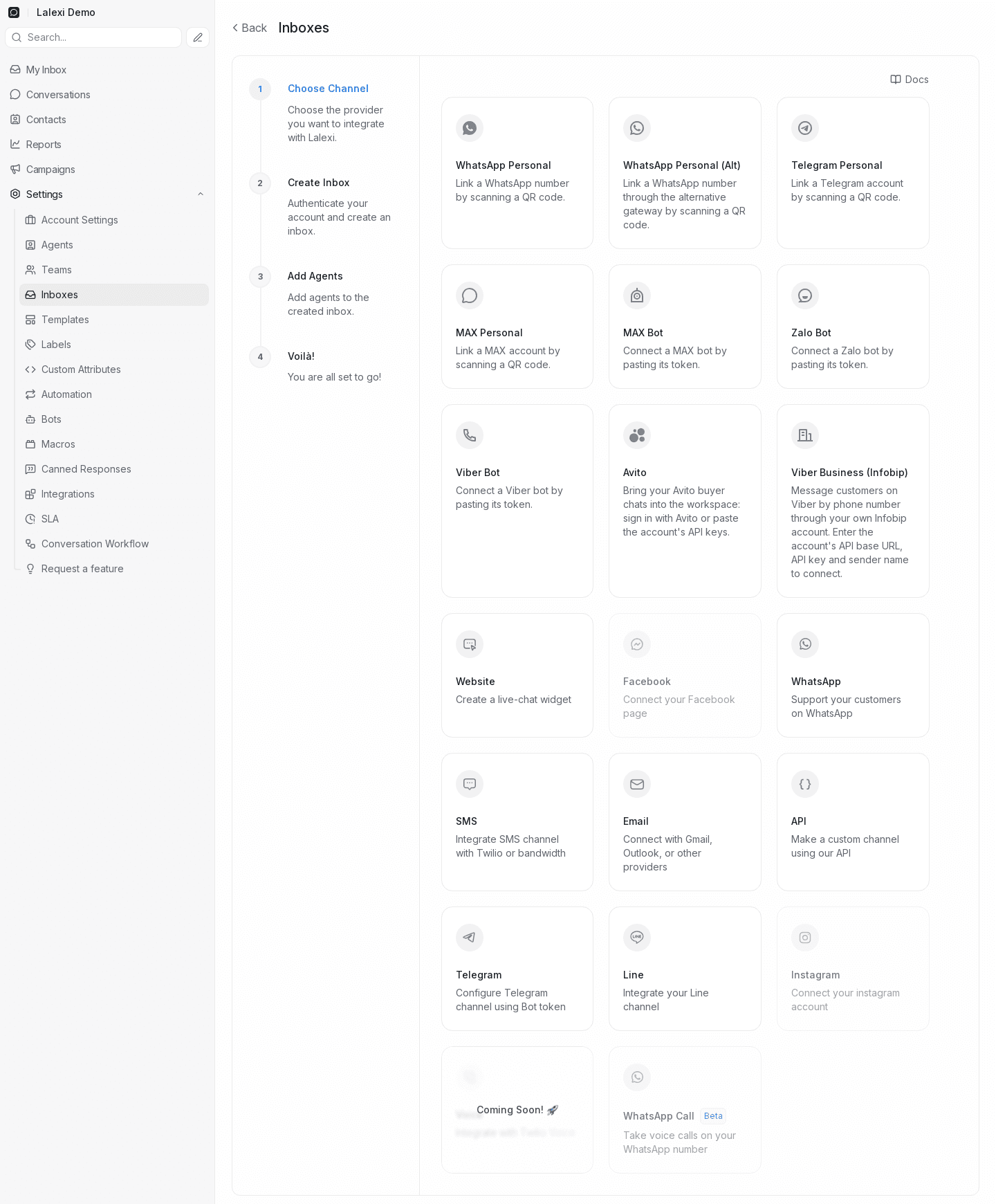
Every channel is created in one place: Settings → Inboxes → Add Inbox. Lalexi channels come first — personal accounts by QR code, bots by token, Avito, Cian and Viber Business — with the standard inboxes below: the official WhatsApp, a Telegram bot, the website chat, email and others.
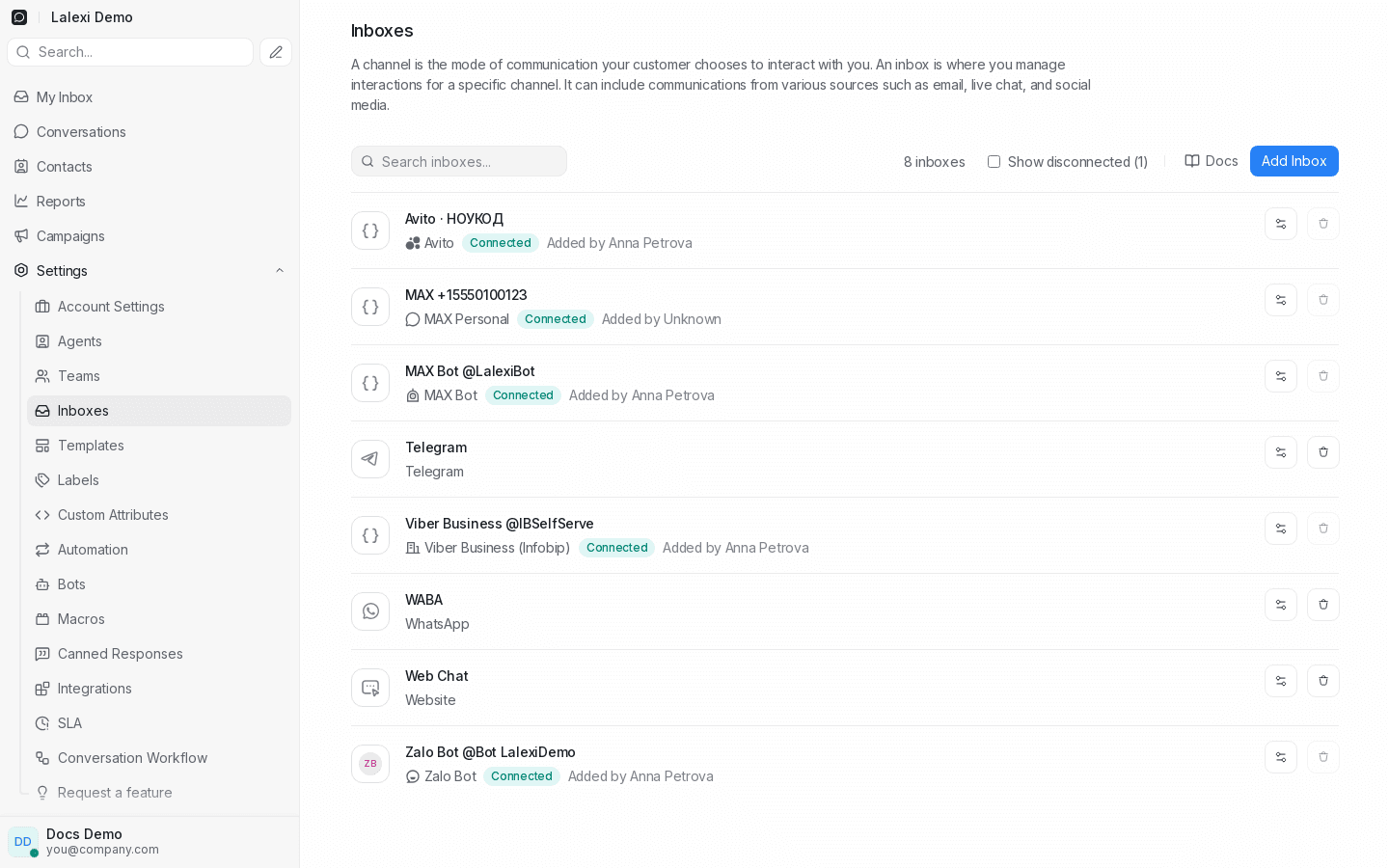
Connected channels show in the shared inbox list. Lalexi channels carry their status and who added them right in the row. The same header holds the Show disconnected toggle with a count — disconnected channels are out of the list by default.
Kinds of Lalexi channels
Lalexi channels come in four kinds, with different abilities:
| Method | Channels | What you get |
|---|---|---|
| QR code — personal account | WhatsApp Personal, WhatsApp Personal (Alt), Telegram Personal, MAX Personal | A full number: previous chats are visible, you can write first, mass messaging and warm-up are available. |
| Token — bot | MAX Bot, Zalo Bot, Viber Bot | The bot only answers people who wrote to it first. No chat list or history, no mass messaging, warm-up or New message. |
| Your own account's keys — business sender | Viber Business (Infobip) | Messages customers by phone number: New message, mass messaging and warm-up are available. No chat list and no earlier history. |
| Access to the platform account — marketplace and classifieds | Avito, Cian | Chats with clients about your listings. There is a chat list and history, but you cannot write first — so no mass messaging, warm-up or New message. Needs a paid account on the platform itself: a company profile with a subscription at Avito, an agency account and an API key at Cian. |
Standard inboxes (WhatsApp Business, a Telegram bot, the website chat) differ in more than needing platform keys:
| Lalexi channels | Standard inboxes | |
|---|---|---|
| Needs platform keys | no (bots — a token; Viber Business, Avito and Cian — access to your own account) | yes (except the website chat) |
| Takes a slot in the connection limit | yes | no |
| Mass messaging, warm-up, New message | yes, for personal accounts and Viber Business | no |
| Usage | yes | no |
| Import of earlier history | yes, for personal accounts, Avito and Cian | no, new messages only |
| Connection tab on the inbox | yes | no |
| SLA, quality control, reports | yes | yes |
The number of simultaneously connected Lalexi channels is capped by the workspace limit. Once it's used up, their tiles in Add Inbox go inactive — see Limits. Standard inboxes don't count against it.
Who can connect
Any member can link a personal number or a bot: the Inboxes section is open to agents too, in a reduced form — they see only Lalexi channels, only their own inboxes and only the Connection tab on them. Standard inboxes, inbox collaborators and the other tabs are managed by an administrator.
The Connection tab
Every Lalexi channel has a Connection tab in its inbox settings. It holds everything about the link to the messenger:
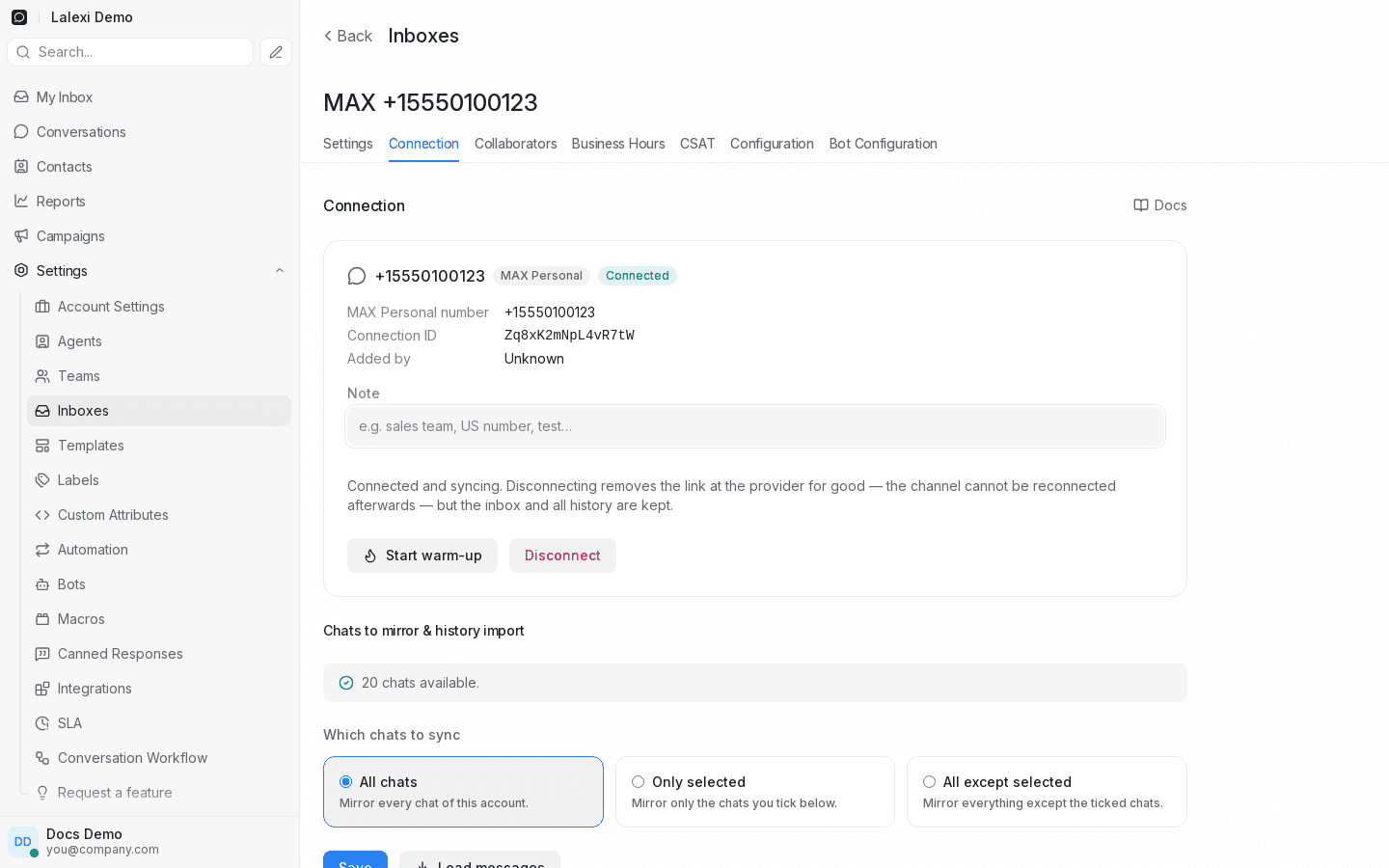
- Number, channel type and status.
- Connection ID — handy when writing to support.
- Added by.
- Note — a free label for the number (say "sales team" or "test"). Visible to the whole team; keeps numbers apart when there are many. It saves itself as soon as you leave the field.
- Reconnect — appears when the session has dropped.
- Start warm-up — on personal accounts, takes you to warm-up with this number preselected.
- Disconnect — removes the link to the messenger account, see below.
- Show this channel's conversations — a checkbox that appears on a disconnected channel and brings its history back into the workspace.
- Below — which chats to mirror and history import, see Sync settings.
Statuses
| Status | Meaning |
|---|---|
| Connected | The account is active, messages are syncing. |
| Reconnect required | The session dropped — link the account again. The channel and history are kept. |
| Rate limited | The messenger is temporarily throttling sends. |
| Disconnected | The link was removed. The channel and all history are kept, but hidden from the workspace, and nothing syncs any more. |
Reconnecting
When the session drops and the channel asks to be reconnected, a Reconnect button appears on the Connection tab. For personal accounts scan the QR code again; for bots paste the token into the form that opens. Syncing resumes and the history is kept.
A reconnect takes no slot in the connection limit — but it frees none either: the link is alive and will come back, so a channel in "Reconnect required" keeps its place.
Disconnecting
A channel is disconnected from the interface: the Disconnect button on the Connection tab. Anyone the channel is available to can press it — an administrator on any channel, an agent on their own. Who disconnected which number is recorded in the audit log.
Disconnecting hits the link, not the correspondence:
- The link to the messenger account is deleted at the provider for good. It cannot be restored, and this channel cannot be reconnected. To use that number again, add it as a new connection — it gets a new id.
- The channel, its conversations and messages are not deleted. They are hidden: the channel leaves the sidebar, the inbox list and the filters, and its correspondence stops showing in the workspace.
- The slot in the connection limit is freed — another channel can take the disconnected one's place straight away.
Disconnecting is not a pause: after it the link no longer exists on the messenger's side. The confirmation says so plainly, and the action cannot be undone afterwards.
Getting the correspondence back
- In the inbox list turn on "Show disconnected" — the hidden channel reappears in the list, and its Connection tab opens from there.
- On that tab tick "Show this channel's conversations" — the conversations come back into the workspace. This does not resume syncing: no new messages will arrive on such a channel.
The bin icon in the inbox list is still inactive for Lalexi channels: such an inbox cannot be deleted together with its history — it can only be disconnected. That way customer correspondence does not disappear along with the number.