Sync settings
Which chats of a connection to mirror into Lalexi and how to import history.
After linking an account, you choose which of its chats reach Lalexi. That's done on the inbox's Connection tab: Settings → Inboxes → the inbox → Connection, the Chats to mirror & history import block. Right after linking you land on this tab automatically.
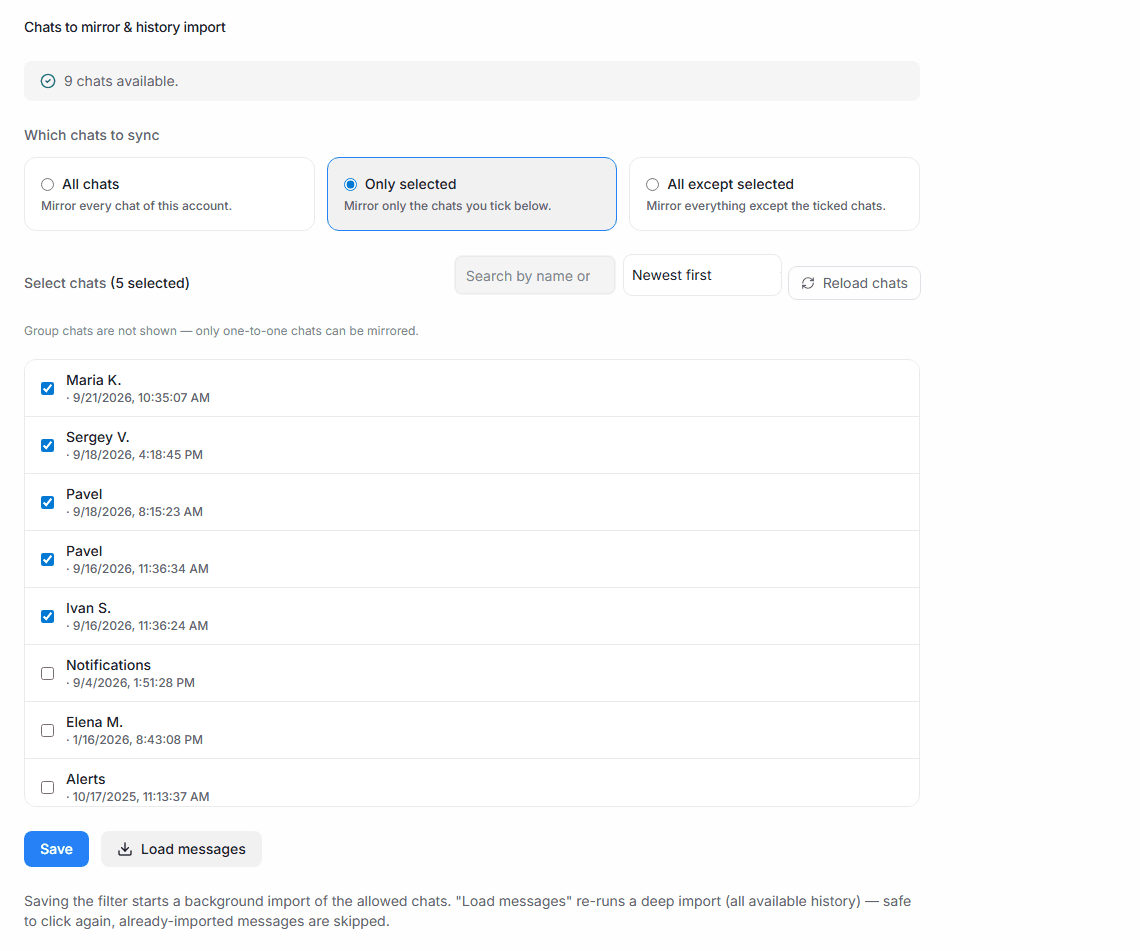
Until a filter is set up, nothing is imported and incoming messages are ignored — until you pick a mode and press Save.
Which chats to sync
| Mode | What gets mirrored |
|---|---|
| All chats | Every chat of this account. |
| Only selected | Only the chats you tick. |
| All except selected | Everything except the ticked chats. |
In the selection modes you get search by name or phone and sorting (newest first / by name / by phone).
Only one-to-one chats are synced. Group chats are not shown and are not mirrored.
Bots (MAX Bot, Zalo Bot, Viber Bot) and Viber Business have no chat list: a conversation appears by itself with the first incoming message, so there is nothing to set here.
Importing history
- Save starts a background import of the allowed chats — they appear in the list automatically.
- The Load messages button re-runs a deep import (all available history). It's safe to click again — already-imported messages are skipped.
- Right after linking, chats may need a minute to show up — if the list is empty, click Reload chats.
Who sees what
A member only sees the inboxes and chats they have access to. Every Lalexi inbox shows who added it — in the list and on the Connection tab — handy when there are many accounts.