Mass messaging
Send messages from an .xlsx list: a sender per row, AI rephrasing and scheduling.
Mass messaging sends messages to a list of contacts that you upload as an
.xlsx file. Each row in the file is a separate message with its own
recipient, text and sender.
The section lives under Campaigns → Mass messaging.
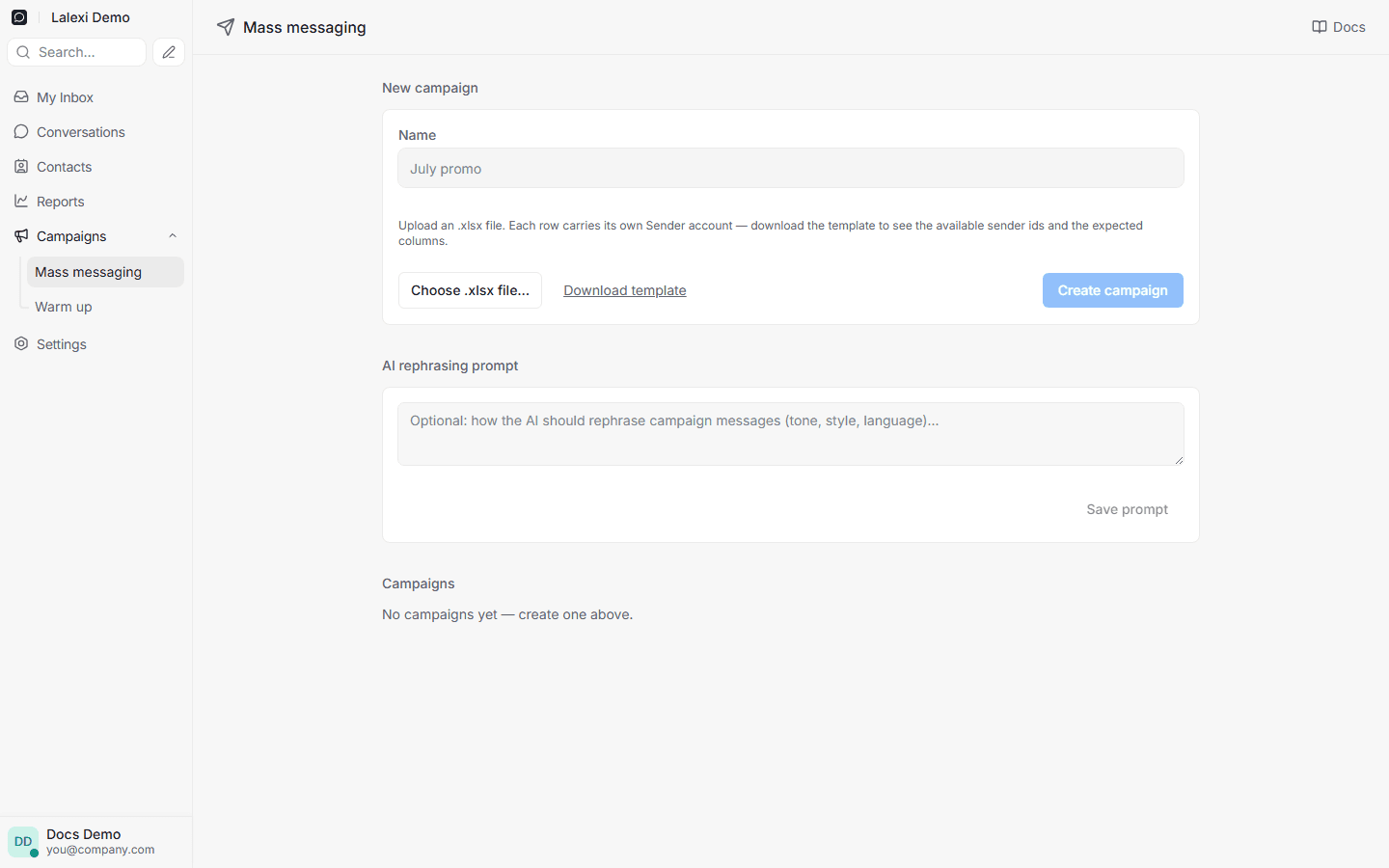
Creating a campaign
- Open Campaigns → Mass messaging.
- Under New campaign give the campaign a name.
- Download the
.xlsxtemplate — it lists the available sender ids and the expected columns. - Fill the file in and pick it with Choose .xlsx file.
- Click Create campaign.
The sender is set per row in the file — so one campaign can go out from several accounts. If some rows are invalid, the campaign is still created and the problem rows are skipped with an explanation.
Sending from an account group
An administrator can send a campaign not from a set number but from an account group: in the form pick Send from → Account groups and tick the groups. It also works from the file: a Group column with the group's name, several separated by commas. The names are on the Groups sheet of the template.
- A message goes out from a live account of the group, one at a time per account, with the delay you set. The account is picked when the message is due, so an account that drops out mid-campaign takes nothing with it: the rest goes out from the others.
- A row with a Sender goes out from it, as usual.
- A row for a group needs a Phone: a chat belongs to one account, so ChatId does not work here. A row fills in either Sender or Group.
- When no account is live, the messages wait and the campaign page says so. After 72 hours of waiting they fail.
AI rephrasing
Below the form there is an AI rephrasing prompt field — how the AI should rewrite the messages (tone, style, language); keep it with Save prompt. Then, on the campaign page, you can rephrase all messages or only the selected ones. This helps make a campaign feel less templated.
Scheduling and sending
The campaign page shows a table with columns: Name, Phone, Chat ID, Sender, Message, Delay, Status, Scheduled, Sent.
- Schedule all or selected — set the send time (shown in your time zone).
- Cancel campaign — unsent messages won't go out.
Message statuses
The main statuses you'll see:
| Status | Meaning |
|---|---|
| Scheduled | A send time is set. |
| Sending / Accepted | The message was handed to the messenger. |
| Delivered | Reached the recipient's device. |
| Read | The recipient opened it. |
| Undelivered | Delivery failed. |
| Delivery unknown | The messenger sent no confirmation. |
| Cancelled / Completed | The campaign was stopped or fully ran through. |
Reporting
Campaign results are visible in the reports: filter conversations by the
campaign label or by the mass_campaign_name attribute with the campaign
name.
Bulk sending from a new number risks a block. Warm the account up before a large campaign: see Warm up.