AI Assistant
Set up your assistant, connect it to a channel and hand conversations to an agent.
The AI Assistant answers customers first in connected channels. It uses your knowledge, follows rules and scenarios, can call connected tools and hand conversations to your team. Copilot helps agents draft replies when a person is handling the conversation.
Administrators can open Settings → AI Assistant. If you have several assistants, select the one you want first. If there is none yet, click Create the first assistant, enter the name customers will see and, optionally, a short description. New assistant adds more — up to five per workspace. If it says no agent bot is registered, contact your account manager.
Get started
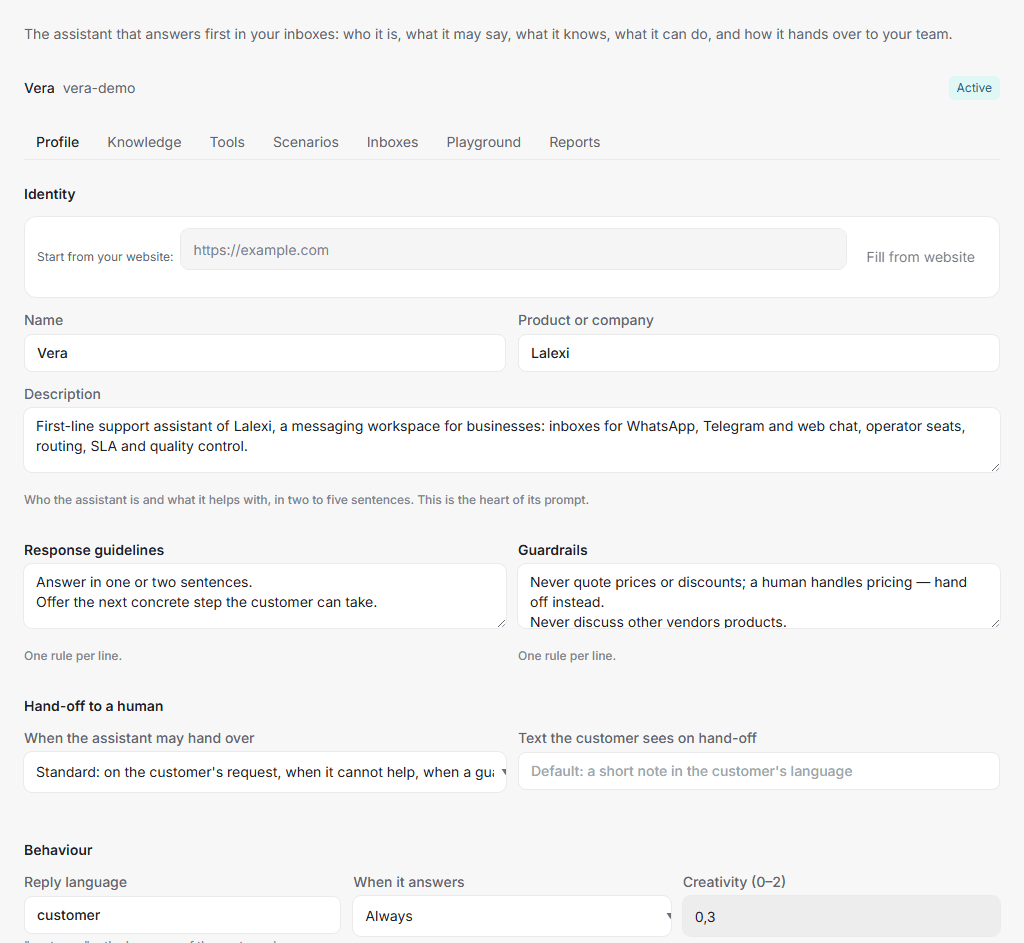
- In Profile, enter a name, company and description of how the assistant helps customers. Add response guidelines and guardrails, one per line.
- Under Hand-off to a human, choose whether the assistant can transfer conversations to a person. Save the profile.
- Add knowledge and check replies in the playground.
- Connect the assistant to the channel and check it in a test conversation.
Fill from website helps draft a profile from your website address. Review it and click Save. This fills in the description; it does not add the website to the knowledge base. Add materials in Knowledge.
Choose where the assistant answers
The Inboxes tab lists your communication channels. Click a channel and choose one of three states:
- Not attached — the channel has no bot.
- Attached — the assistant is in every chat: each new chat of the channel starts with it.
- Attached partially — the assistant is only in the chats you pick. A new chat starts with your team and the assistant knows nothing about it. It will not write there even once until the chat is picked.
With Attached partially, the list of the channel's chats appears under the choice. A tick is saved at once. Only people who have already written are listed: a customer who has not written yet cannot be picked.
Another bot is attached means attaching this assistant will replace the channel's current bot. Make sure you have selected the right assistant.
If you detach the assistant, its running conversations go to your team. If you change a channel from Attached to Attached partially, running conversations stay with the assistant and old resolved ones do not go back to it.
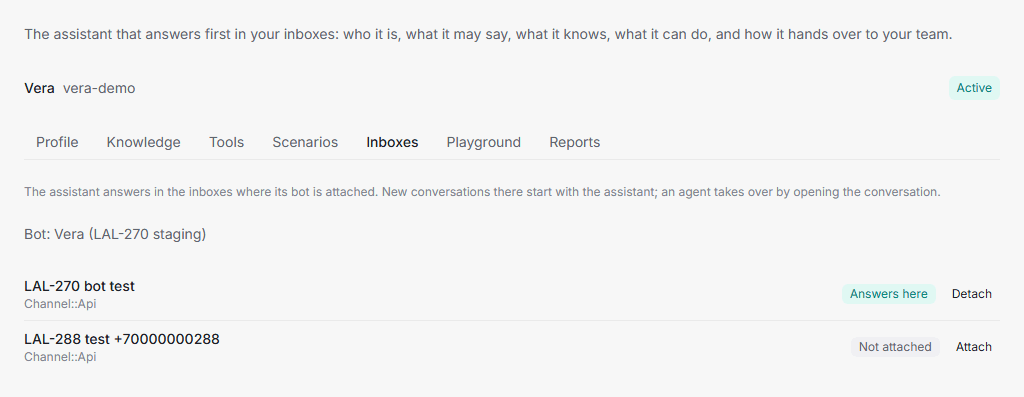
Attaching does not automatically return existing open conversations to the assistant: turn it on in them with the button in the conversation. The Active label beside its name does not mean it answers every conversation: the connection, status and profile settings also matter. If it says Switched off, it answers nowhere: Switch on brings it back, and its inboxes are then picked again on the Inboxes tab. Switch off takes it out of every inbox and keeps its knowledge, scenarios and report — there is no deletion, only switching off.
Turn it on or off in a chat
The conversation header has a button with the assistant's name next to the status. It appears in every chat of a channel that has a bot, group chats too. A click turns the assistant on or off in that chat. The chat's context menu does the same: Assign agent lists the bot.
A chat turned on moves to Pending, so it leaves the list of open conversations. The assistant answers the customer's next message, not old ones.
When the assistant answers
The assistant processes new customer messages only while the conversation
is Pending (pending) and the bot is assigned to that chat.
| Conversation status | Behaviour |
|---|---|
| Pending | The assistant can reply if its other settings allow it. |
| Open | The team is handling it; the assistant does not reply. |
| Resolved | The assistant does not reply. A new customer message returns a chat that stayed with the assistant to it; a chat an agent took stays with your team in an Attached partially channel. In an Attached channel a new request starts with the assistant again. |
| Snoozed | The assistant does not reply. A new customer message opens this conversation for the team. |
An agent's reply takes the chat from the assistant. As soon as an agent writes to the customer, in Lalexi or from their phone, the conversation becomes Open. A reply the assistant was still preparing does not reach the customer. A private note does not take the conversation. The assistant does not come back to this chat by itself: use the button in the conversation.
Viewing a conversation and choosing the Open action are different things. Changing the status to Open is what stops the assistant's replies.
Take over and return a conversation
To continue personally, just reply to the customer or click the button with the assistant's name in the conversation header. Open and assigning an agent in place of the bot work the same way.
To return it, click that button or select the assistant's bot in Assigned agent. Assigning the bot removes the human assignment and changes the status to Pending. Check that the assistant is attached to this channel. If its bot is missing from the list, contact your administrator or account manager.
The assistant answers a new incoming message. After returning a conversation, send a new message in a test conversation to check it. Changing the status does not trigger another reply to an old message.
Automatic hand-off to a person
In Profile → Hand-off to a human → When the assistant may hand over, choose between two modes:
- Standard permits hand-off when the customer asks, knowledge is missing, a request is outside its scope or a guardrail requires it. A failure or usage limit can also cause the service to hand the conversation to the team.
- Never disables automatic hand-off. This mode can be useful for demos. If the assistant cannot answer, the conversation may remain Pending without a reply until an agent opens it. An agent's reply takes the chat in this mode too.
Automatic hand-off is also disabled when the assistant has no saved profile. To enable it, save a profile with Standard selected.
A completed hand-off changes the status to Open and adds an internal note explaining why. An ordinary hand-off also supports a customer message: you can set Text the customer sees on hand-off. If the assistant has already written a suitable sentence, that sentence takes precedence. Hand-off does not mean a particular employee has already joined.
Schedule and inactive conversations
When it answers offers always, during the channel's business hours only, or outside business hours only. Business hours must be enabled in the channel settings for the time restriction to apply.
For conversations where the customer stops replying, you can leave them pending, close them after a threshold, or check whether the issue is resolved. In the evaluated mode, an unresolved issue is handed to an agent if automatic hand-off is allowed. You can set the closing message and enable or disable sending it.
Audience limits which customers the assistant engages with. An empty field means everyone. Ask your account manager to help configure a rule. With an audience restriction and hand-off disabled, a customer outside the audience may receive no reply.
Next: knowledge and scenarios, testing and Copilot, reports and help.