Quick start
Signing in to Lalexi, where things live in the menu and first steps.
This page is about the first steps inside a workspace that already exists. How it comes to be and in which order channels are connected — Rollout.
Signing in
You sign in to Lalexi with your own account — the site opens in the browser at your workspace address. New members get access via an invite: a link or an email (see Team).
Where things live
Everything Lalexi adds on top of plain chat lives in the same sections as the rest of the settings — there is no separate menu.
| What you need | Where to look |
|---|---|
| Connect WhatsApp, Telegram, MAX, a bot or the website chat | Settings → Inboxes → Add Inbox |
| Connection status, who added it, a note, reconnect, which chats to mirror, history import | Settings → Inboxes → the inbox → Connection tab |
| Message a new contact first | the New message button next to the search box, top left |
| Mass messaging, warming a number up | Campaigns |
| Message usage, limits, quality control | Reports |
| Invite a colleague, roles | Settings → Agents |
| Response deadlines | Settings → SLA |
| Ask for a feature, suggest an idea | Settings → Request a feature |
| This documentation | the menu under your name, bottom left → Read documentation |
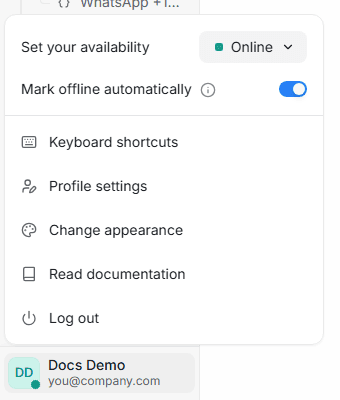
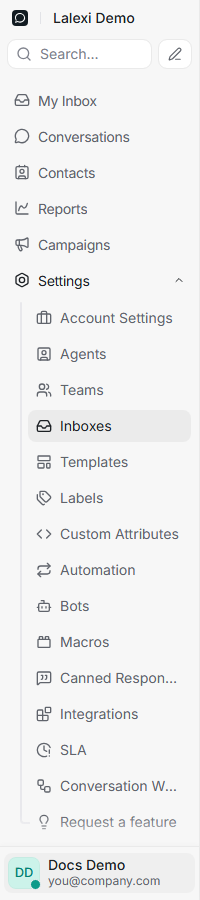
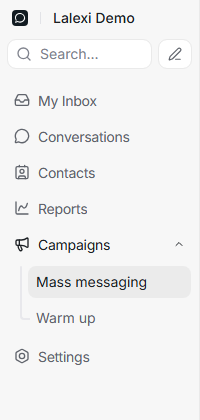
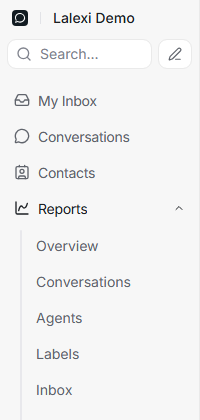
These items used to sit in a separate section on the left — Home (earlier Lalexi). It is gone: connections moved to Inboxes, mass messaging and warm-up to Campaigns, usage, limits and quality control to Reports, the team to Agents. Old links keep working and open the new place.
First steps
- Add a connection — every channel has its own guide, all collected under Connections.
- Choose which chats to mirror — on the Connection tab of the new inbox (see Sync settings).
- Answer inbound — conversations show up in the shared chat list, just like a regular messenger. Who on the team gets a chat is decided by assignment.
- Message first when you need to — via New message.
From there, invite your team and run warm-up and mass messaging.
Pre-launch questionnaire
An interactive questionnaire: which channels you need, what is already in place and what is left to prepare. The result is saved as JSON or PDF and sent to your manager.
Connections
All Lalexi channels with links to the guides: WhatsApp, WhatsApp Business, Telegram, MAX, Zalo and Viber bots, Viber Business, Avito, Cian and the website chat.