Rollout
How a Lalexi rollout goes: the workspace and the admin invite, the questionnaire, the website chat as the first channel, connecting messengers and how long each one takes to prepare.
This page is about how the launch goes: what we do, what we need from you and in which order. It is useful both before the first sign-in and while the channels are being connected.
How access works
There is no self-service sign-up. We create the workspace, and an invite goes to the administrator on your side — as a link or an email. They sign in, land in a ready workspace and invite everyone else themselves: Team.
So the first thing we need is the name and address of the administrator: the person who will add sources, invite people and own the settings. From there they send the same invites themselves, from Settings → Agents:
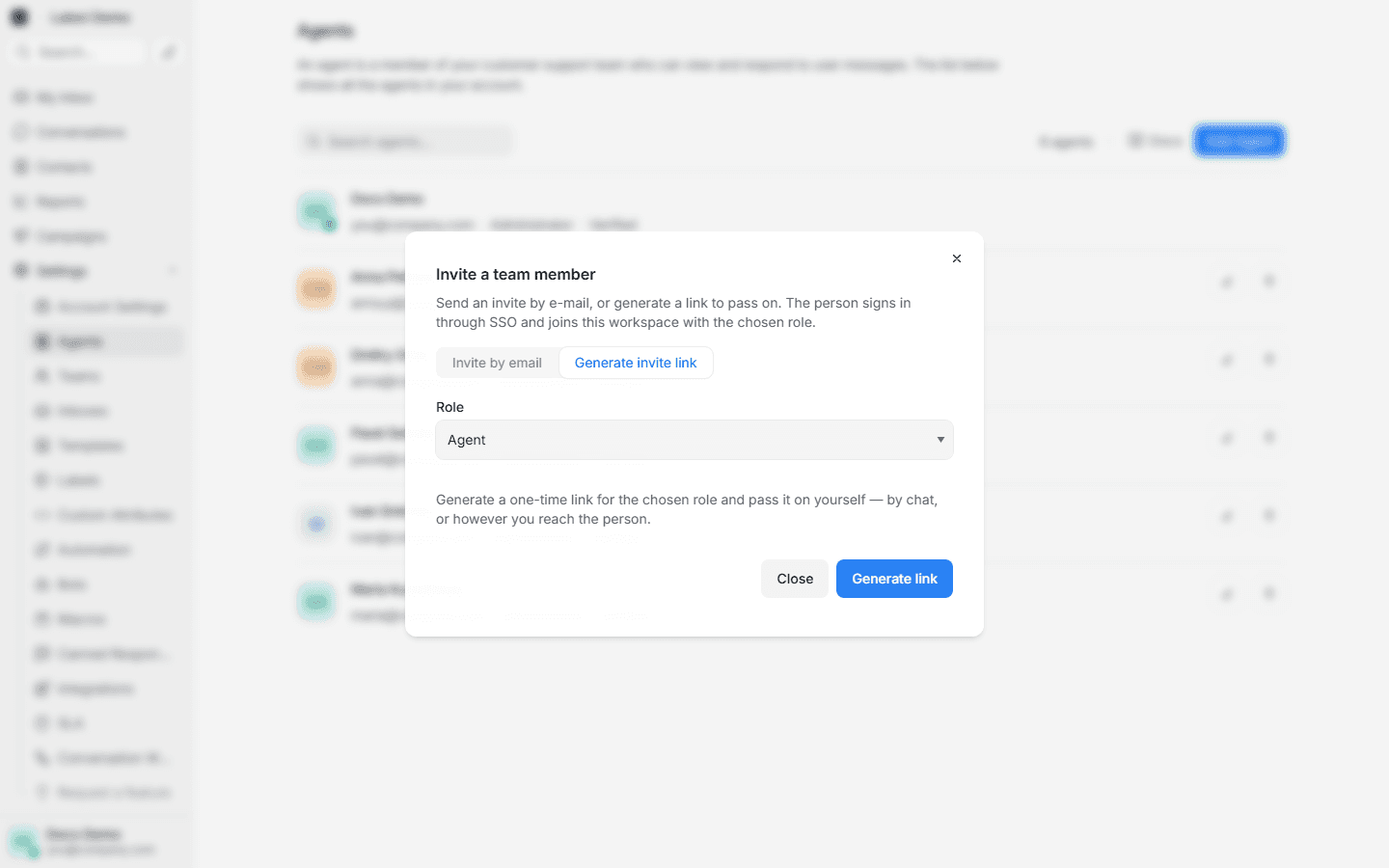
An invite is valid for 7 days, and only an accepted one takes a seat in the limit. If a link expires, it is simply issued again — nothing is lost.
The order of the launch
Step 1. The questionnaire
Rather than finding out piece by piece what you already have, start with the pre-launch questionnaire. It takes a few minutes, every question has answer options, and the result is a list of what has to be prepared for each channel. The result is saved as a file and sent to your manager.
You can also go through it together with your manager on the first call — that works too.
Step 2. The workspace and the first sign-in
We create the workspace, set the limits of your plan and send the invite to the administrator. They sign in to an empty workspace — from there it is the quick start.
Step 3. The website chat
The first channel is always the website chat. The reason is simple: it needs nothing but Lalexi itself — no third-party keys, no verifications, no waiting for someone else's review. The channel is created in a minute, the snippet goes onto the site, and on that same day you can see the whole thing work: a conversation arrives, an agent answers, the conversation is resolved.
The website chat also takes no slot in the connection limit — it takes nothing away from the messengers that will be connected later.
No website of your own? The web chat is still worth having: we can put up a standalone "Contact us" page on your domain with messenger tiles and the chat built in. Tick that in the questionnaire.
Step 4. The team
The administrator invites agents (Settings → Agents) and decides who sees what. It is worth doing before the messengers are connected: conversations then reach people straight away instead of sitting with nobody to answer them.
Two rules people trip over most often:
- A source needs agents. Until it has them, nobody sees its conversations — that goes for the web chat and for the standard channels alike.
- Automatic assignment only reaches people who are Online. With nobody online, a chat stays in the Unassigned tab. See Conversation assignment.
Step 5. The messengers
Channels are connected in the order they are ready, not all at once: the ones that only need a phone or a token go in on day one; the ones waiting for somebody else's review are prepared in parallel, while the team is already working in the web chat.
There is a guide per channel under Connections.
Step 6. Setting up the work
Once the channels are in place:
- Choose which chats to mirror for every personal account and for Avito and Cian — nothing is imported until you do: Sync settings.
- Check the assignment — round-robin is on by default for every source.
- Set the SLA if response times matter.
- Fill in business hours for the web chat if you do not answer around the clock.
- Warm up new numbers before any mass messaging: Warm-up.
- Turn on live translation if customers write in languages your team does not speak: an agent reads the incoming message in their own language and their reply leaves in the customer's — the original and the translation sit side by side. It is switched on per conversation, from the bar above the thread.
Step 7. A dry run
A short check to do before customers see the channel:
- write into every connected channel from your own phone and make sure the conversation arrives;
- answer from Lalexi and check the reply gets through;
- see who the chat was assigned to — that tells you whether the source's agents are set correctly;
- if the SLA is on, check that the timer shows in the conversation.
How long each channel takes to prepare
The time to connect is decided by the channel's own side, not by Lalexi. Hence the order: start with whatever is ready today.
| Channel | What we need from you | When it can be connected |
|---|---|---|
| Website chat | access to the site's pages | straight away |
| WhatsApp, Telegram, MAX — personal accounts | the phone with that number at hand, the cloud password if one is set | straight away, linking takes minutes |
| Telegram bot, MAX Bot | the bot token | straight away, if the bot already exists |
| Zalo bot | a Zalo account that has passed identity verification | after Zalo's verification |
| Viber bot | the application data: bot name and URI, legal entity, beneficial owner, category, description, countries, use case and the admin's Viber number | after the application is approved — a Rakuten Viber partner files it, there is no self-service; the review takes up to four weeks |
| Viber Business | your own Infobip account, a signed warranty letter, the service form, logos in six sizes, countries and volume | after the application is approved — Viber's review is two to three days, but the partner allows up to four weeks for the whole thing |
| WhatsApp Business | a Meta business portfolio, an app, a free number, a permanent token | after the Meta preparation; freeing an occupied number and business verification take days |
| Avito | a company profile, verified details, a subscription with the Messenger API | after the details check — it takes up to several business days |
| Cian | an agency account on a paid plan, the Messages service switched on, a Cian API key | as soon as the key is issued; if the plan is not in place yet — after the exchange of letters with Cian |
The two most common delays are a WhatsApp Business number still occupied by the ordinary WhatsApp app and the Avito subscription tier. Both take one question in the questionnaire to spot, and weeks to fix if you find out on launch day.
Who does what
| You | Us | |
|---|---|---|
| The workspace and its limits | — | we create them |
| The administrator invite | you accept it | we send it |
| The questionnaire | you fill it in | we read the answers and draft the plan |
| Preparation on the platforms' side (Meta, Infobip, Avito, Zalo) | you do it — the accounts and contracts are yours | we walk you through it and answer questions |
| The web chat snippet on the site | you paste it | we hand over the snippet and check the widget shows |
| Connecting channels in Lalexi | you can do it yourself from the guides | we connect them together on a call |
| Sync settings, SLA, assignment | you decide how it should work | we set it up |
| Training the team | you set aside the time | we walk them through it |
The keys, tokens and passwords of your platforms are yours. Lalexi stores them encrypted and uses them only to receive and send messages. If a key leaks, reissue it on the platform's side and connect the channel again.
Next
Lalexi — Overview
WhatsApp, Telegram and MAX in one place: a shared inbox, mass messaging, warm-up and message accounting.
Pre-launch questionnaire
An interactive questionnaire: which channels you need, what is already in place and what is left to prepare. The result is saved as JSON or PDF and sent to your manager.