Website chat
How to add the Lalexi chat widget to your site: create the inbox, paste the snippet, and configure look, greeting and allowed domains.
The website chat is the chat button in the corner of your site. A visitor writes straight from the page and the conversation lands in the shared chat list, like a message from any messenger. No third-party keys needed: this channel is entirely ours.
The inbox is created by a workspace administrator: a member with the agent role sees Settings → Inboxes only in part and cannot create standard inboxes — see Team.
Step 1. Create the inbox
-
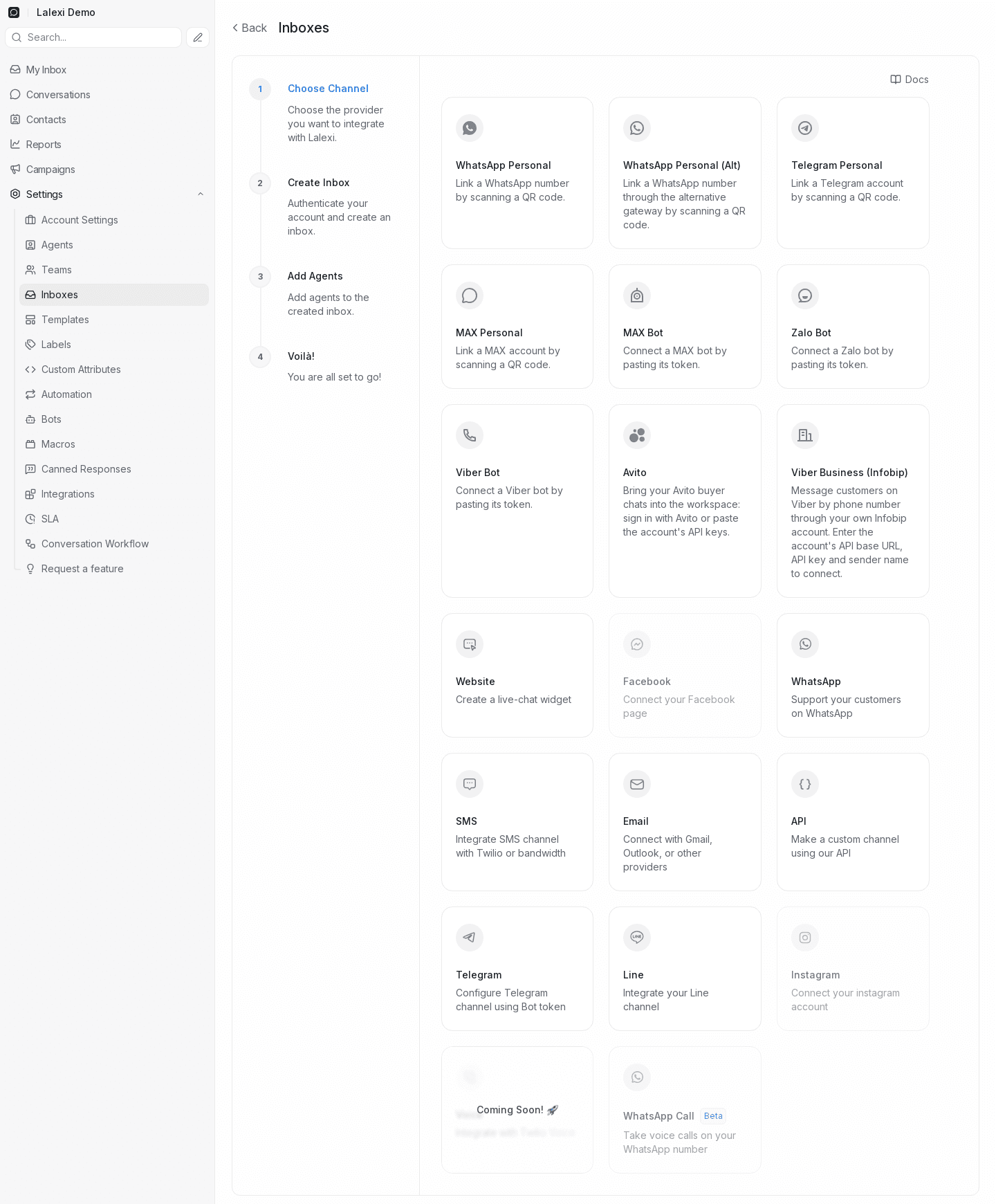
Go to Settings → Inboxes and press Add Inbox.
-
Pick the Website channel.
-
Fill in the form:
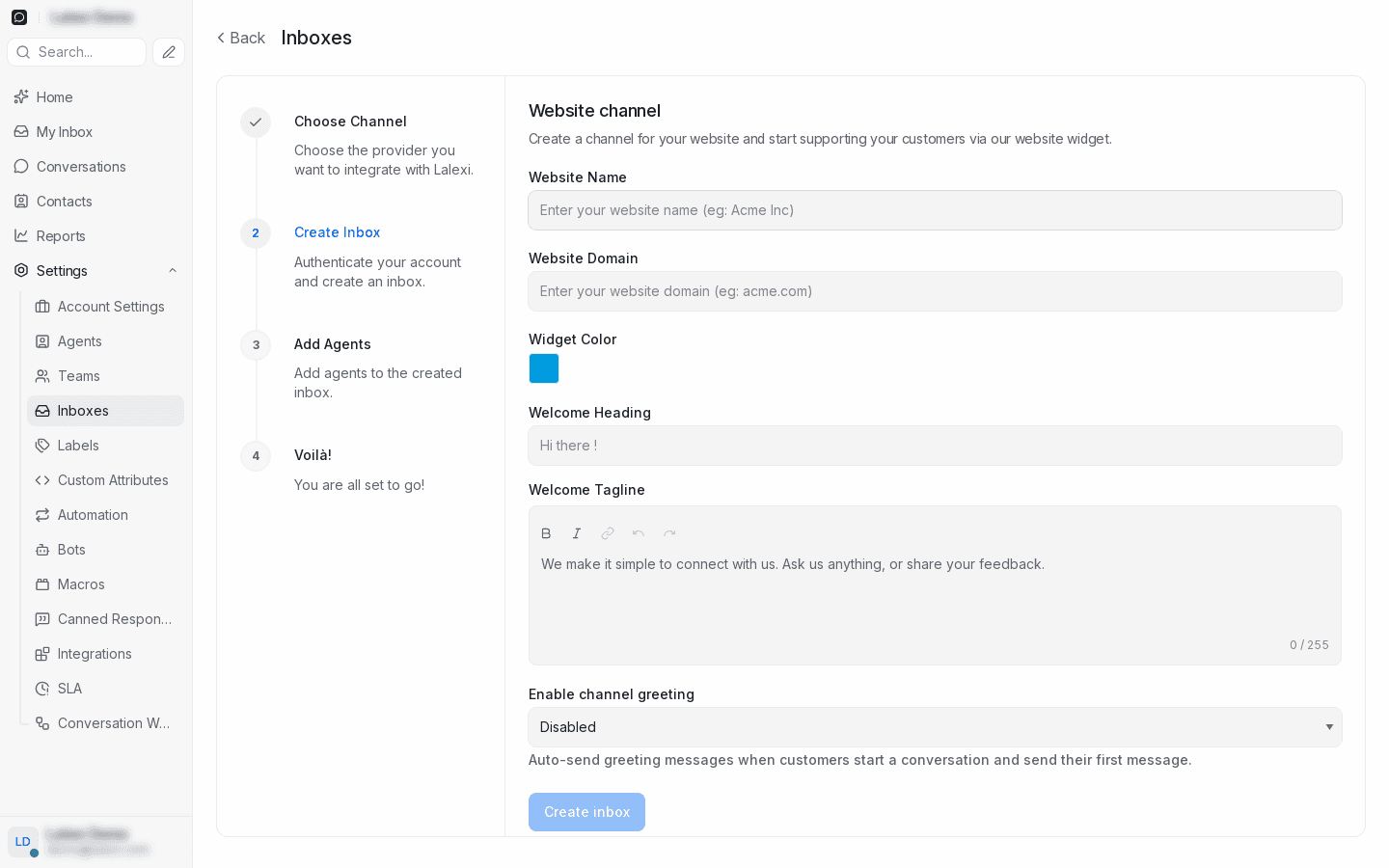
Field What to enter Website Name The channel's name in the chat list, e.g. "Website". Website Domain Your site's domain, e.g. example.com.Widget Color The colour of the button and header — usually your brand's. Welcome Heading The heading inside the open chat: "Hi there!". Welcome Tagline The line under it: what you can help with. Enable channel greeting Auto-reply to the visitor's first message. -
Press Create inbox.
-
Add agents — the people who will answer. Skip it and nobody sees the conversations.
Step 2. Paste the snippet into your site
- Open the inbox you created: Settings → Inboxes → your website chat.
- On the Settings tab, switch the right-hand panel from Preview to Script.
- Press Copy and paste the snippet into your site before the closing
</body>tag — on every page that needs the chat.
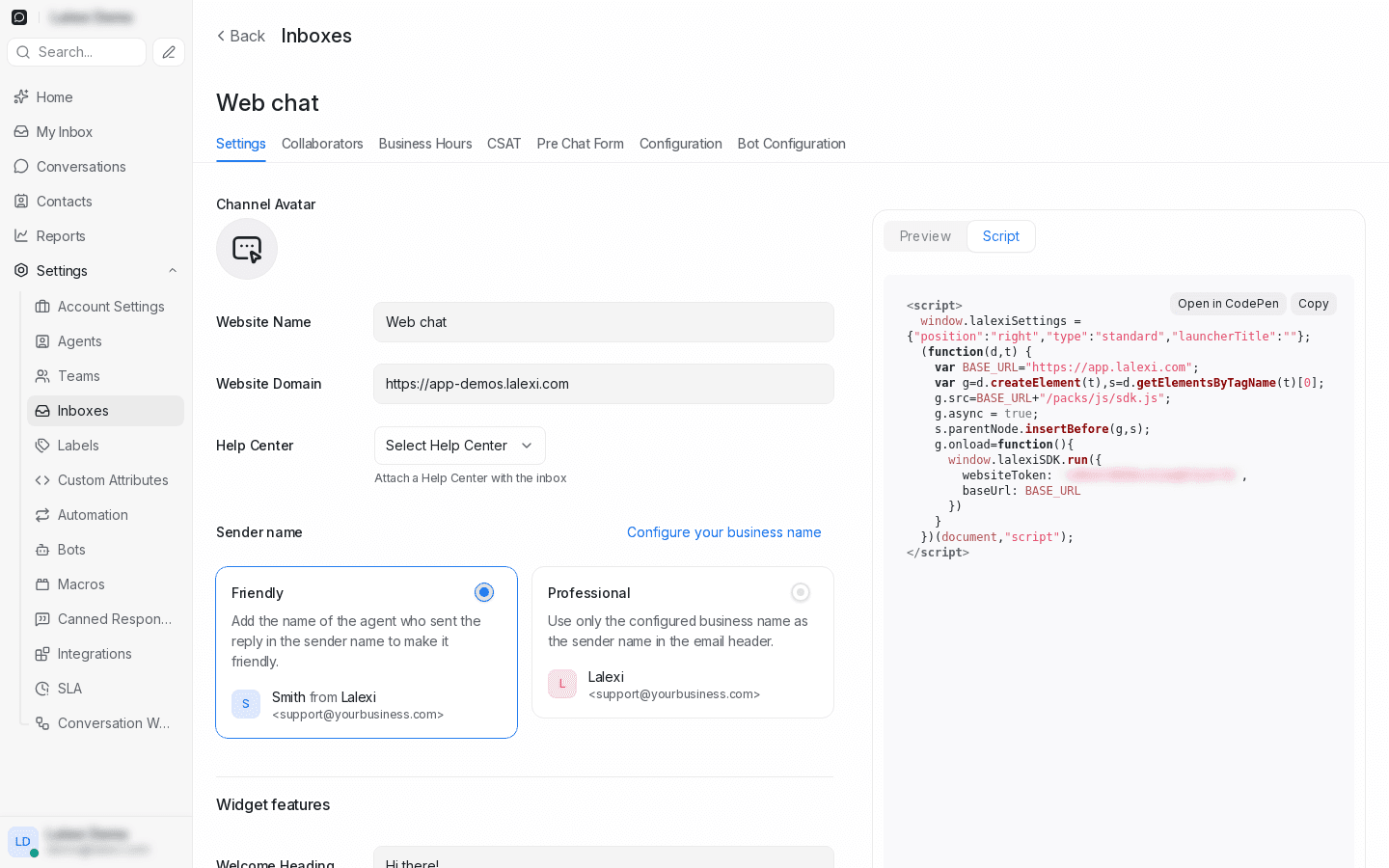
The snippet is small: it loads sdk.js and starts the widget with your
channel's token.
The websiteToken in the snippet identifies the channel and is meant to be on
your pages. Restricting where the widget may run is done with the allowed
domains list — see below.
If your site runs on a website builder or CMS, paste the snippet into its "custom script" / "footer code" box — that's enough, no separate integration is needed.
Step 3. Configure the widget
All of this is on the inbox's Settings tab.
| Setting | What it does |
|---|---|
| Welcome Heading / Tagline | The text inside the open chat. |
| Widget Color | The colour of the button and header. |
| Bubble | Button position (left/right) and style: standard or expanded with a caption. |
| Launcher Title | The caption on the expanded button. |
| Set Reply time | The reply-speed promise shown in the widget: in a few minutes / hours / within a day. |
| Features | What the visitor gets: attachments, emoji, an "end conversation" button. |
| Enable channel greeting | Auto-reply to the first message. |
| Enable email collect box | Ask for an email in a new conversation so you can reply after the visitor leaves. |
| Allow messages after conversation resolved | Whether people can write into a closed conversation. |
| Enable conversation continuity via email | Continue the conversation over email when the address is known. |
Next to the settings there's a Preview — the widget is visible right away, without publishing anything.
Two more tabs are useful for almost everyone:
- Pre Chat Form — ask for a name, email or phone before the conversation starts.
- Business Hours — opening hours: outside them the widget says up front that the answer will come later.
Step 4. Restrict the domains
The inbox's Configuration tab:
- Allowed Domains — a comma-separated list of domains allowed to embed the widget. Blank means "any site", which is not what you want for a production channel: someone else's site could open your chat.
- Enable widget in mobile apps — turn this on if you embed the widget in a mobile app: it sends no domain and would otherwise be blocked by the check.
- Identity Validation — signing visitor data with a secret key so nobody can impersonate someone else. Worth it when the chat sits inside an account area where the user is already signed in.
What this channel doesn't get
The website chat takes no slot in the connection limit, it has no Connection tab, and it is unavailable in campaigns, warm-up and New message: you can't message a visitor who has left the site — that's what the email collect box is for. SLA, quality control and reports work as usual.
If it doesn't work
| Symptom | What to do |
|---|---|
| The chat button never appears | The snippet is on the wrong page or not before </body>. Open the browser console: sdk.js should load without errors. |
| The widget was there and vanished after a settings change | Check Allowed Domains: if domains are listed and the site is opened from another one (a www. variant or a staging domain), the widget is blocked. Add that domain. |
| The chat won't open inside a mobile app | Turn on Enable widget in mobile apps — apps send no domain. |
| Messages arrive but nobody sees them | The inbox has no agents — the Collaborators tab. |
| The visitor left and you need to reply | Turn on the email collect box and conversation continuity via email: the conversation continues over email. |