Knowledge, scenarios and tools
Give the assistant business information and configure the actions it can take.
Open Settings → AI Assistant and select your assistant. The profile sets its role and rules, knowledge supplies facts, scenarios describe the flow of a conversation, and tools let it contact your system.
Add knowledge
The Knowledge tab offers two ways to fill the knowledge base.
Documents
Enter a name and page address or paste text, then click Add document. When an address is present, the text field is disabled. Also crawl the site's pages lets the service add other pages it discovers on the same website.
The service extracts question-and-answer pairs from the materials. Check the document status: Waiting, Synced, Failed or Unsupported. A successfully added row does not yet mean the material has been processed. For a linked page, Sync now starts processing again.
Questions and answers
For a short rule, add a question and an exact answer manually. For example:
Question: How do I reschedule an appointment?
Answer: Send your preferred date and time. An agent will check availability.
A manually added pair is approved immediately. You can edit the question or answer, remove approval, or delete the entry. The assistant uses only approved pairs that can be found through knowledge search.
Suggestions from resolved conversations
In Profile, enable Suggest FAQ from resolved conversations and save. After a conversation is resolved, the service may suggest new pairs. They appear under Pending, rather than becoming knowledge automatically.
- Read the question and answer.
- If there is a from conversation #… link, open the original conversation and check the context. Older entries may not have this link.
- Correct any inaccuracies and click Approve, or Dismiss. A dismissed entry can be returned for review.
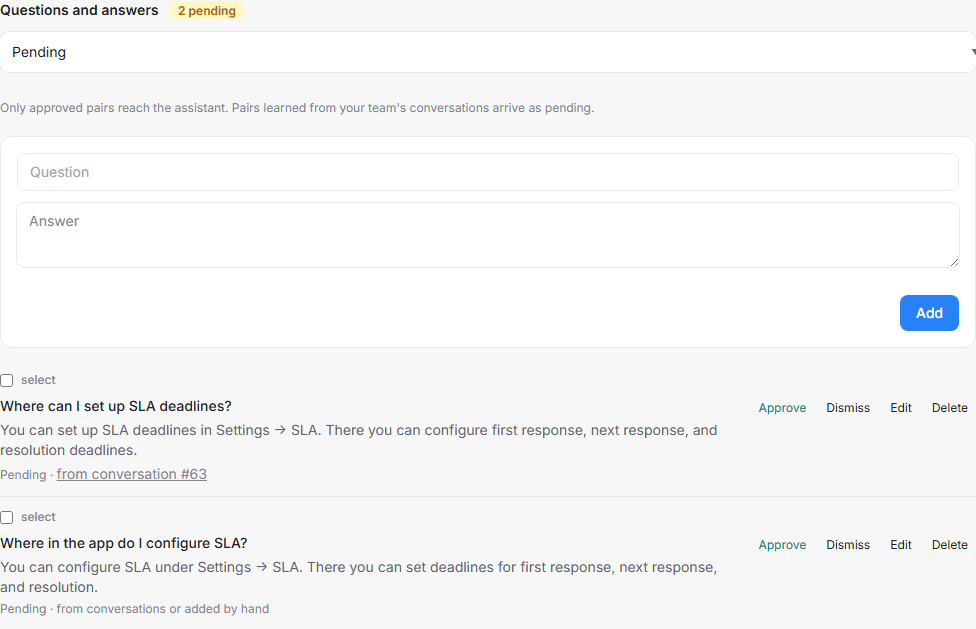
A used in conversations link may also appear. It shows conversations where the retrieved pair was included in the assistant's context. It does not guarantee that the assistant used its answer word for word.
The separate Save a summary to the contact card after resolution setting stores information about an individual customer. It does not replace the shared knowledge base.
Check that knowledge works
Search must be enabled by the service, and questions must be processed for search by meaning. Technically this uses stored numerical representations of questions (vectors); customers do not need to install a separate database.
A saved document or approved pair does not prove that search is working. If search is disabled, question preparation fails or the query cannot be processed, the assistant may continue answering without retrieved knowledge. The Knowledge tab has no separate warning for this condition.
To check:
- Confirm that the document has been processed and the relevant pair is approved.
- In Playground, ask the question from that pair. Choose a fact available only in your materials.
- Check the … knowledge pair(s) used label below the reply and the reply's content. Try another wording of the question.
- If the label is missing and facts are not found, send your account manager the assistant's name, question and document or pair name. Ask them to check search configuration and knowledge preparation. One failed question cannot distinguish a technical failure from a lack of a sufficiently close match.
Scenarios
In Scenarios, enter a title, a short description of the situation and instructions, then click Add scenario. For example:
Title: Reschedule an appointment.
When it applies: The customer wants to change their visit date.
Instruction: Ask for the preferred date and time. Do not promise availability. Hand off to an agent for confirmation.
Enabled scenarios are passed to the assistant when it prepares a reply. Enable and Disable control whether a scenario is included. Instructions describe behaviour; they do not create a calendar booking by themselves or override a setting that prohibits human hand-off.
Tools
A tool connects to your system, for example to check an order's status. The assistant receives its description, can request a call and use the result in a reply. A sentence in a scenario does not create this connection.
Ask the specialist who maintains your system to configure Tools. They need the request address, how data is retrieved or sent, parameters and access credentials. The interface supports GET and POST requests, parameter descriptions, authentication settings and an Enabled checkbox.
The description should clearly state what the tool does and returns. For example: “Returns an order's status using its order number.” The assistant extracts parameters from the conversation and inserts them into the request.
A saved access secret is not displayed again. When editing a tool, leaving the secret field empty preserves its current value.
Check wording in the playground first, then check the tool itself in a separate test conversation. The playground does not execute actions or verify the connection to your system.